
Product Details Testing
This guide walks you through creating and configuring a Product Details A/B test in Shogun.
Before You Begin
Product Details testing will be available on the Advanced plan once the feature leaves Beta. If you’re not currently on this plan, you’ll need to upgrade before starting a test.
Starting a Product Details Test
To begin, go to your Shogun dashboard and click Start a Test. From the list of available test types, select Product details test, then confirm that you’d like to create a new Product details test.
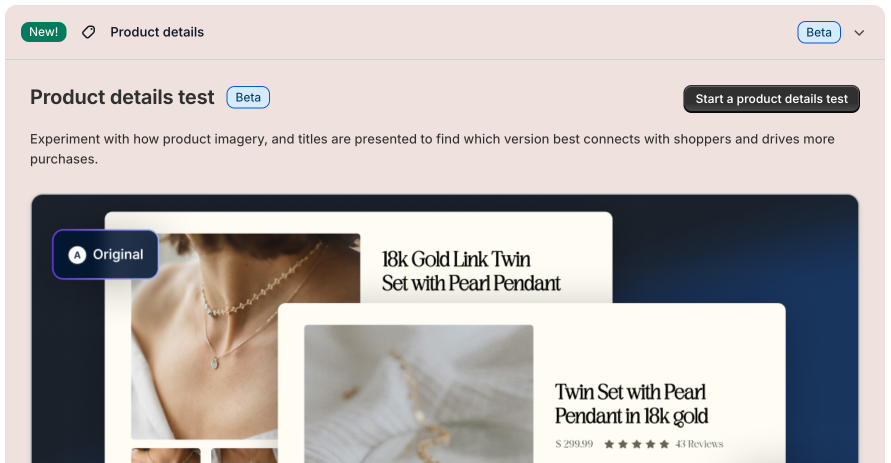
Configuring Your Test
If you’ve previously run a theme test, you may see a banner confirming that your theme is ready. This means no additional configuration is required, and you can proceed with setting up your test.
Shopify Plus Requirement
When creating a Product Details test, you may see a banner about Shopify Plus. Shopify Plus is required to ensure a fully consistent experience across your storefront and checkout.
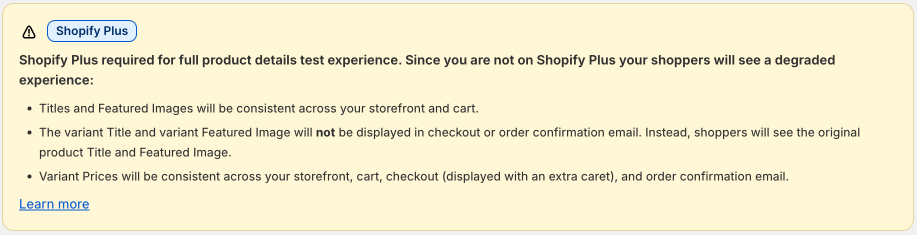
If you are not on Shopify Plus, visitors may see the tested variation on your product page, but the checkout and order confirmation email will display the original product title, price, and featured image. You can still run the test, but it’s important to understand this limitation.
You can read more about this here.
If You Need to Retry Setup
If something doesn’t look correct while previewing your test—such as pricing or other product details—you can select Retry Setup.
Retrying the setup uses AI to reconfigure and reinject all necessary scripts into your theme, which typically takes 15–25 minutes. In most cases, this resolves display or configuration issues in the preview. You can continue configuring your test while this process runs in the background.
While your theme is being readied, give your test a clear, descriptive name. This will help you identify it later in reporting. Choose a name that reflects the product and the type of change you’re testing, such as a pricing update, title variation, or featured image change.
Selecting a Product
When you select a product from your Shopify catalog, Shogun imports it into the test configuration screen, including all of its existing Shopify variants.
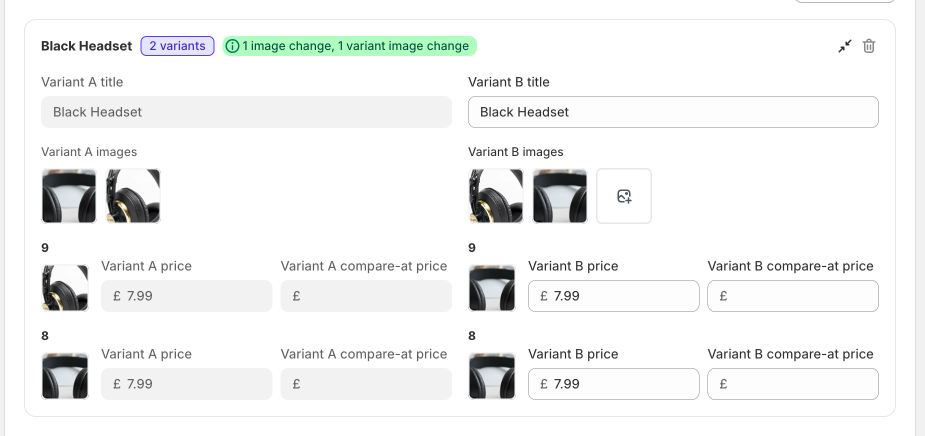
The original product becomes Variant A (Control) and remains unchanged. This version reflects the current live product configuration in Shopify.
Shogun then creates Variant B, which you can edit independently.
Configuring Variant B
Within Variant B, you can modify the following elements:
Product Title
Update the product title to test alternative messaging, positioning, or value propositions.
Product Images
You can fully customize the image set for Variant B. This includes adding new images from Shopify's media library, removing existing ones, and reordering them.
Reordering images changes the primary thumbnail shown on product and collection pages. You can also update variant-level thumbnails, allowing you to test different imagery at the SKU level.
Variant Pricing (Price testing required)
All Shopify variants (SKUs) appear individually in the configuration screen.
For each variant, you can modify:
- Price
- Compare-at price
This enables you to test pricing changes across all variants or selectively adjust specific ones. Variant A pricing remains unchanged.
Traffic Split, Test Goal, and Audience Configuration
Before launching your test, you’ll configure traffic allocation and targeting.
Traffic Split
You can control how visitors are divided between Variant A (Control) and Variant B. The default is typically a 50/50 split, but you can adjust this based on your testing strategy.
Test Goal
Select the primary metric you want to use to evaluate performance. This determines how Shogun measures success and calculates statistical significance.
Audience Targeting
You can refine which visitors are eligible to enter the experiment using audience conditions such as device type, location, and others.
Previewing Your Changes
Before launching, you can preview your variant in a duplicated version of your current theme to confirm that the updated title, image, or price appears correctly.
Launching and Monitoring Your Test
After configuring your product changes, traffic allocation, and audience settings, you can launch the test.
Shogun will:
- Assign visitors consistently to their variant
- Track performance according to your selected primary metrics, see Analyzing Results
- Display results as data accumulates
Once sufficient data has been collected, you can select and apply a winning variant.